Joomla 6 Compatibility Check: Scan Every Extension on Your Site for Free
Check which installed Joomla extensions will break on Joomla 6 with the free JoomlaX Migration Scanner: install, scan, read the results and fix each finding.
 Abhilash SahooFounder & CEO, Infyways
- Published
- Reading time
- 14 min read
On this page 14 sections
- Why do you need a Joomla 6 compatibility check?
- What is the JoomlaX Migration Scanner?
- Who is it for?
- What does Migration Scanner detect?
- How do I install Migration Scanner?
- Still on Joomla 3? How to use the Migration Scanner
- How do I run a Joomla compatibility scan?
- How do I read the results?
- How do I fix the issues it finds?
- Migration Scanner vs Joomla's pre-update check vs manual checks
- DIY or hire help?
- Troubleshooting
- Frequently asked questions
- Download Migration Scanner free
Updated 14 October 2026 · By Abhilash Sahoo, Infyways
To check whether your Joomla extensions are compatible with Joomla 6, install the free Migration Scanner from JoomlaX on a staging copy of your site, click Scan site, and read the Dashboard. It inventories every enabled third-party component, module, plugin and template, scans their PHP and XML files, and labels each extension Will not run, Needs review or Ready. For every problem it shows the file, the line number and the replacement code. The scan is read-only and never runs extension code.
In short: Migration Scanner is a free Joomla administrator component for Joomla 4.4, 5 and 6 (PHP 8.1+). It answers one question before you upgrade: which installed extensions will break on my target Joomla version, and where exactly?
Why do you need a Joomla 6 compatibility check?
Most Joomla upgrades do not fail because of Joomla core. They fail because of a third-party extension or template that still uses old Joomla 3-era code, such as JFactory, JText, JRequest or JHtml behaviours.
Joomla keeps many of these old names alive through its backward compatibility plugin (plg_behaviour_compat on Joomla 4/5, plg_behaviour_compat6 on Joomla 6, where the Classes Aliases option is off by default). Everything compat6 covers is scheduled for removal in Joomla 7. For the exact settings per version, see our Joomla backward compatibility plugin guide; for what changed in the release itself, see what's new in Joomla 6.
So an extension that "works" today may only be working because a compatibility layer is propping it up. A compatibility check tells you which extensions are genuinely ready, which are leaning on the plugin, and which will not run at all.
What is the JoomlaX Migration Scanner?
Migration Scanner is a free, read-only Joomla administrator component that finds legacy PHP APIs and incomplete manifests before you move a site to Joomla 6. It is built and maintained by Infyways under the JoomlaX brand.
| Details | |
|---|---|
| Price | Free (no checkout) |
| Installs on | Joomla 4.4, 5.x and 6.x |
| PHP | 8.1 or later |
| Database | MySQL or MariaDB |
| What it reads | PHP and XML files of enabled, non-core components, modules, plugins and templates |
| What it skips | Joomla core, disabled extensions, JavaScript, CSS and SQL files (this release) |
| Changes your files? | No. It does not execute extension PHP or run extension SQL |
| Target version | Auto (Joomla 6) by default, or choose 4 or 5 |
| Output | Dashboard plan, extension list, per-extension findings, JSON export, printable site report |
| Version | 1.0.0, released 12 October 2026 |
You can try it first on the live demo.
Who is it for?
- Site owners planning a Joomla 3, 4 or 5 to Joomla 6 upgrade who want to know what will break before they start.
- Agencies that need a printable, shareable report of every blocker on a client site.
- Developers who maintain custom or abandoned extensions and need a file-and-line list of what to rewrite.
What does Migration Scanner detect?
The scanner token-scans PHP and checks XML manifests for a namespace. Each finding is grouped by API, given a severity, and tagged with the compatibility layer it depends on.
Status for each extension
| Status | Meaning |
|---|---|
| Will not run | Uses APIs the compatibility plugin cannot save. Must be rewritten for the target version |
| Needs review | Still depends on compat6 aliases or similar layers |
| Ready | Nothing blocking for the chosen target version |
Finding types (chips)
- Needs aliases: old class names such as
JTextorJFactorythat only work while Classes Aliases are enabled in compat6. - Needs legacy classes: code that depends on legacy classes the compatibility plugin still ships.
- Needs asset stubs: references to removed assets that the plugin stubs out.
- Will not run: calls the compatibility plugin cannot rescue.
Severity
Findings are ranked Critical, High, Medium and Low, so you fix what will stop the site first.
Grouped, not duplicated
If JText appears 48 times in one component, you see one group ("JText · Needs compat6 aliases, 48 times") instead of 48 separate lines. You fix a pattern, not a pile of duplicates. Expand a group to see why it matched and what to put instead.
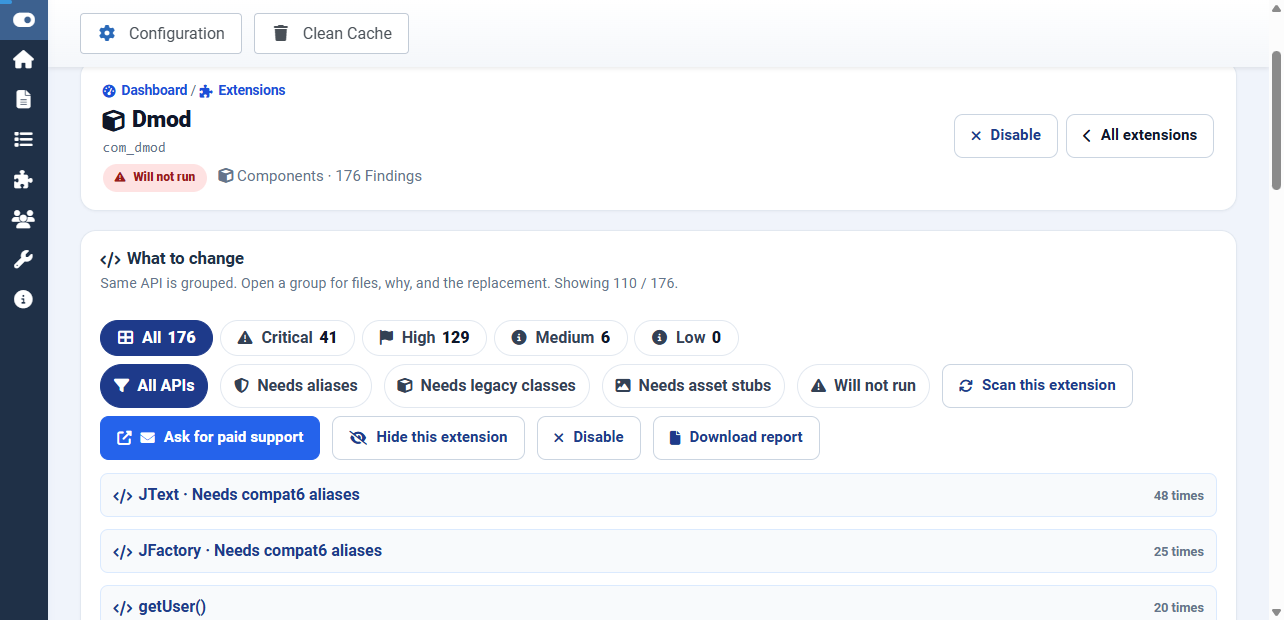
For the replacement pattern behind each API, see our Joomla Migration Reference. For example, JFactory and application changes, JRequest and Input, HTML helpers (JHtml), JTable and database and deprecated JavaScript (MooTools/jQuery).
How do I install Migration Scanner?
- Download
MigrationScanner_UNZIP.zipfree from the Migration Scanner page. - Unzip it on your computer. Inside you will find
pkg_jxmscanner_*.zip(the file you install) andReadMe.txt. - In the Joomla administrator, go to System > Install > Extensions and upload
pkg_jxmscanner_*.zip. - Open Components > Migration Scanner to confirm the Dashboard loads.
- Clear the cache: System > Maintenance > Clear Cache.
You need a Super User or administrator account. You do not need jQuery, a CLI or any extra plugins. Updates use the same steps, and previous scan results stay in the database.
Tip: Do not install the outer _UNZIP file in Joomla. Install the inner pkg_jxmscanner_*.zip.
Still on Joomla 3? How to use the Migration Scanner
The Migration Scanner extension needs Joomla 4.4 or later, so it cannot be installed on a Joomla 3 site. You have two options: scan each extension or template ZIP now with our free online Joomla Migration Scanner, or upgrade a staging copy to Joomla 4.4 and install the extension there. Joomla's official path is 3.10 → 4.4 → 5.4 → 6; you cannot skip Joomla 4.
Option A: scan ZIP packages online (no upgrade needed)
- Collect the installation ZIPs of your third-party extensions and template (from the developer, or zip the folders from your site).
- Drop each ZIP into the online Joomla Migration Scanner. It reads Joomla 3 code, so it works before you upgrade anything.
- Use the results to decide what to update, replace or rewrite. This is the best route for custom or abandoned extensions that have no newer version.
Option B: upgrade a staging copy, then run the extension
- Clone the live site to staging. The live site stays on Joomla 3 until the copy works.
- On the copy, update to the latest Joomla 3.10.
- Migrate the copy to Joomla 4.4 with the Behaviour - Backward Compatibility plugin enabled.
- Install Migration Scanner on the copy, scan, and fix what it flags.
- Continue the copy to Joomla 5.4 and then 6, rescanning at each step, before you touch production.
| Online ZIP scanner | Staging copy + extension | |
|---|---|---|
| What it checks | One extension or template package at a time | Every enabled third-party extension on the site |
| What you need | The ZIP files only | A staging copy upgraded to Joomla 4.4+ |
| Best for | Joomla 3 sites, custom or abandoned code, checks before upgrading | A full, site-wide plan once the copy runs Joomla 4.4 or later |
For every step of the version jumps, follow our Joomla 3 to 6 upgrade guide. If you would rather have it done for you, see our Joomla upgrade service.
How do I run a Joomla compatibility scan?
Run it on a staging copy of your site. The scan is read-only, but a large site can take several minutes and is easier to review away from production.
- Open Components > Migration Scanner.
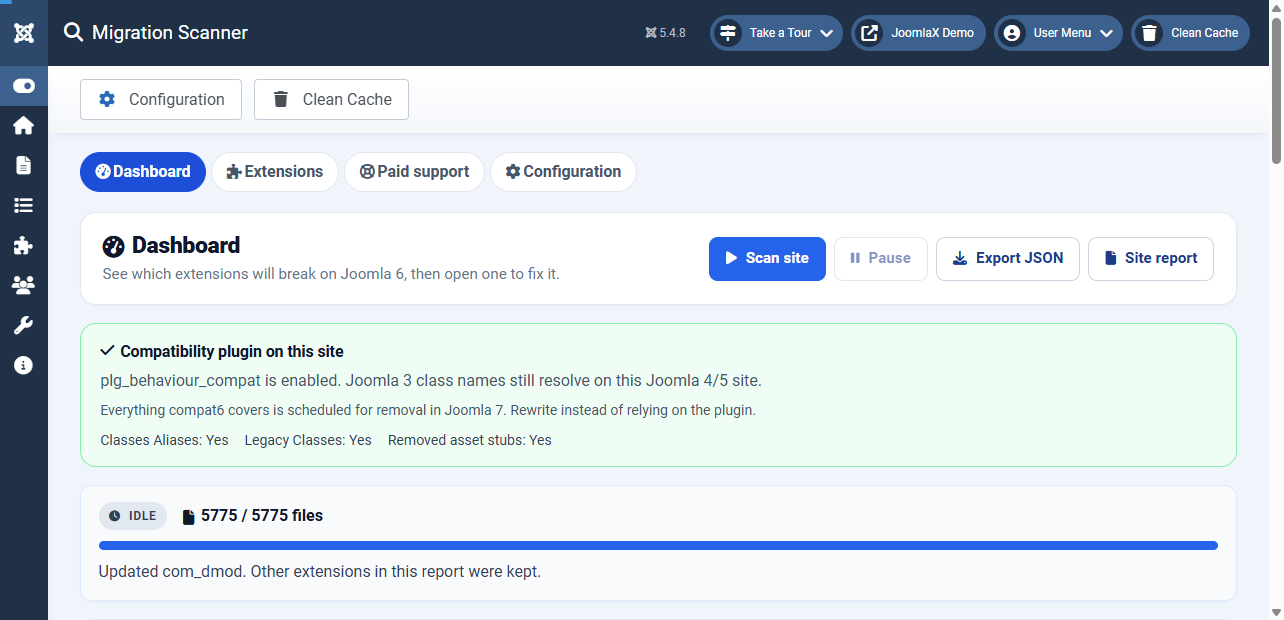
- Read the host banner. It tells you whether
plg_behaviour_compatorplg_behaviour_compat6is enabled, and whether Classes Aliases, Legacy Classes and Removed asset stubs are on. - (Optional) Open Configuration and set the Target Joomla version and Files per step.
- Click Scan site and wait until the live status pill shows Idle.
- Use the Dashboard plan, then open an extension marked Will not run.
Configuration: target version and files per step
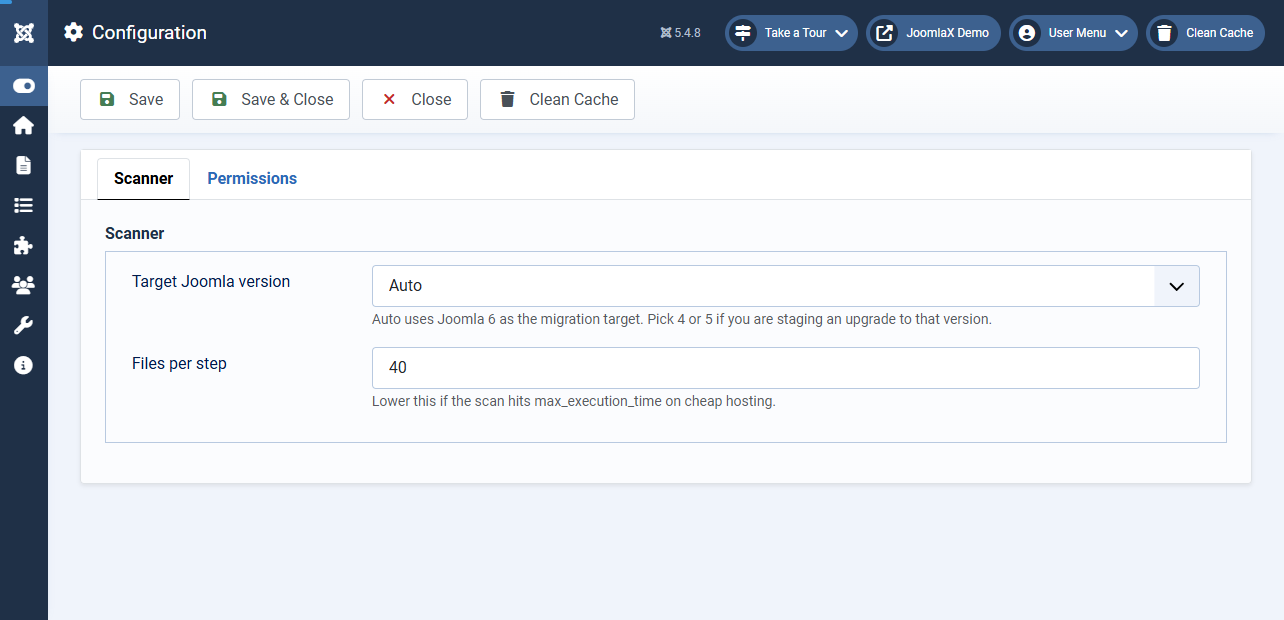
- Target Joomla version: Auto targets Joomla 6. Pick 4 or 5 if you are staging an upgrade to that version.
- Files per step: how many files each scan step reads (default shown: 40). Lower it if the scan hits PHP
max_execution_timeon cheap hosting. - Permissions tab: Super Users can set component permissions.
Save, then run a new scan so the counts match the new target.
How do I read the results?
1. Dashboard: the plan
The Dashboard shows four site-wide counts: All extensions, Will not run, Needs review and Ready. Do this first lists the blockers, and Needs work first is a short table of the worst extensions. From the header you can Scan site, Pause, Export JSON and open the Site report.
2. Extensions: the inventory, worst first
Components > Migration Scanner > Extensions ranks every third-party component, module, plugin and template from worst to best. Filter by status or type, search by name or element (for example com_example), and open a row for its findings. Joomla core never appears here.
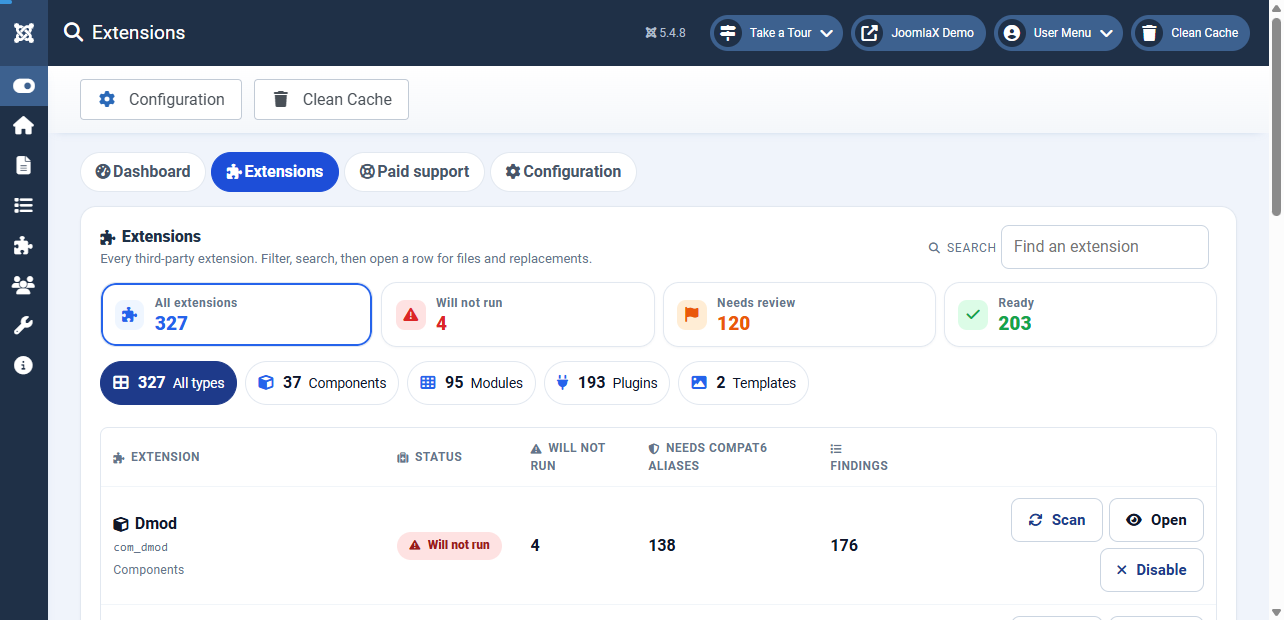
3. Findings: file, line and replacement
Open one extension to see All APIs, the alias, legacy and asset-stub layers, and the Will not run items. Each finding names the file path, the line and the replacement. After you edit files, click Scan this extension to re-check just that one; you don't need to rescan the whole site.
4. Share it
- Export JSON: a machine-readable export that includes
bc_layer,bc_paramandremoved_infor each finding. - Site report: a printable view for agencies, developers and clients.
How do I fix the issues it finds?
Work from the top of the Dashboard plan:
- Update first. Check whether the developer has released a Joomla 5/6 version. Updating often clears dozens of findings at once. Rescan afterwards.
- Replace abandoned extensions. If the developer has stopped updating the extension and it is marked Will not run, look for a maintained alternative.
- Fix "Needs aliases" items. Replace old names with namespaced classes, for example
JTextwithJoomla\CMS\Language\TextandJFactory::getApplication()withJoomla\CMS\Factory::getApplication(). Our migration reference groups show the before/after code for each API. - Rewrite "Will not run" code. These need real changes: namespaced MVC, Web Asset Manager instead of JHtml behaviours, event subscribers, Bootstrap 5 markup in templates. See components and MVC, plugins and events, media and assets and templates and layouts.
- Rescan the extension until it shows Ready. Then, on staging, test with the Classes Aliases option off so you know the code no longer leans on compat6.
For the full upgrade sequence (backups, PHP version, pre-update check, staging cutover), follow our Joomla 3 to 6 upgrade guide. If something breaks after the upgrade, see common Joomla upgrade issues and fixes.
Migration Scanner vs Joomla's pre-update check vs manual checks
Joomla's own pre-update check (System > Update > Joomla, with the update channel set to the next major version) checks required settings. For a Joomla 5 to 6 update it requires the old compatibility plugin to be disabled and Backward Compatibility 6 to be enabled. Its Extensions list relies on what each developer declares, so treat it as a high-level indicator, not proof that the code works.
| Joomla pre-update check | Manual check | Migration Scanner | |
|---|---|---|---|
| Looks at extension code | No (relies on developer update data) | Only if you read the code yourself | Yes: PHP tokens and XML manifests |
| File and line of each problem | No | Slow and error-prone | Yes, with replacement |
| Shows reliance on compat6 aliases / legacy classes | No | Hard to tell | Yes, per finding |
| Covers templates | Partly | Yes | Yes (enabled non-core templates) |
| Site-wide ranked plan | No | No | Yes, worst first |
| Shareable report | No | Your own notes | JSON + printable report |
| Cost | Built in | Your time | Free |
They work best together: use Migration Scanner to find the code problems, fix them, then run Joomla's pre-update check before the actual update.
Whole site or single ZIP: which scanner should I use?
We also run a browser-based Joomla Migration Scanner that checks one package. You drop a single extension or template ZIP into it, and it is useful before you install anything or when you only have the package. The JoomlaX extension scans the installed site: every enabled third-party extension at once, with a Dashboard plan and per-extension rescans. Use the online tool for one package, and the extension for a whole site.
DIY or hire help?
Do it yourself if the scan shows mostly Ready or Needs review extensions that have updates available, and you are comfortable editing PHP on staging.
Get help if you have Will not run extensions that are custom-built or abandoned, a Joomla 3 template, or no developer time. Migration Scanner has a Paid support tab for this. It is optional, and the scanner stays free.
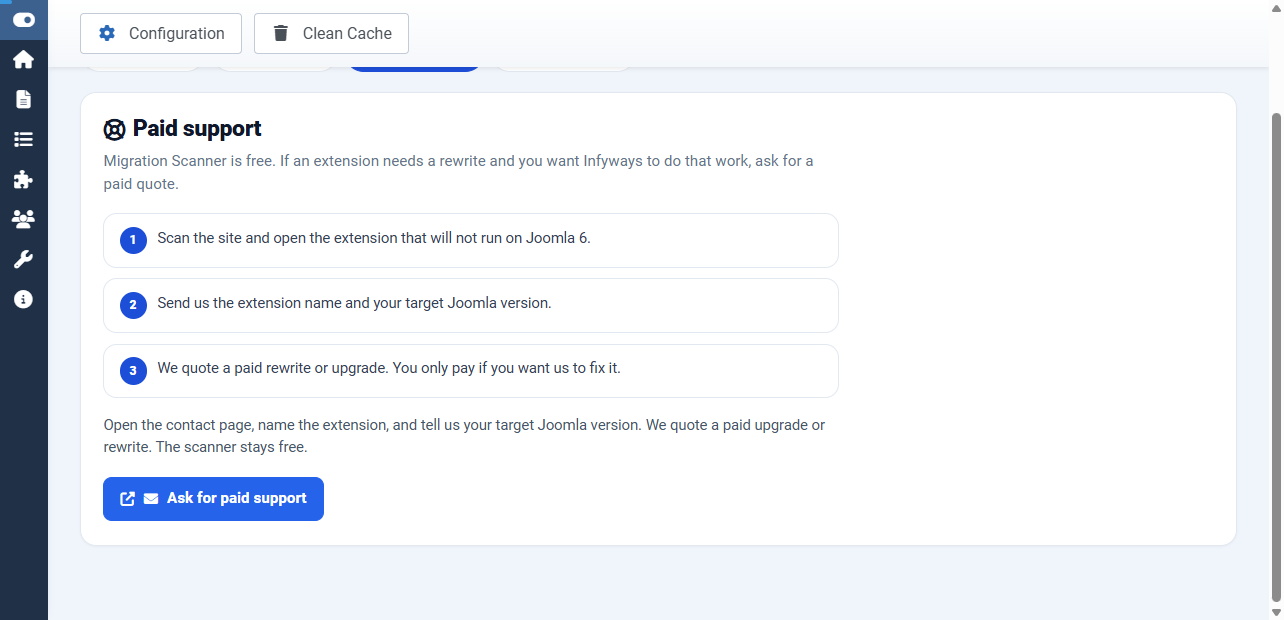
- Open Components > Migration Scanner > Paid support, or click Ask for paid support on the Dashboard or an extension report.
- Name the extension and your target Joomla version.
- Infyways quotes a rewrite. You only pay if you want the fix.
For a full site upgrade, done on staging with your sign-off before production, see our Joomla upgrade service and Joomla extension upgrade.
Troubleshooting
- Scan never finishes: lower Files per step, check PHP
max_execution_timeon staging, and start again. - Old results showing: the Dashboard uses the newest scan. Run Scan site again after installing or updating extensions.
- An extension is missing: only enabled third-party extensions are inventoried. Core and disabled items are skipped.
- JavaScript files not listed: this release reads PHP and XML only.
- Menu still says Preferences: clear the cache and open Configuration from the component submenu or the cog.
If a result does not match what you see in the files, open a ticket at support.joomlax.com. Include your Joomla and PHP versions, the extension element, and a JSON export or a screenshot of the finding.
Frequently asked questions
Download Migration Scanner free
Find out what will break before you upgrade, not after. Download Migration Scanner free from JoomlaX, read the documentation, and run your first Joomla 6 compatibility check on staging today.
If the scan shows work you would rather not do yourself, talk to our Joomla upgrade team.
Filed under Joomla